Delighting users by turning screenshots into editable charts
- Team
-
- 1 product designer (me)
- 1 engineer
- My role
-
- Problem validation
- UX/UI, prototyping, edge cases
- Users love Infogram’s interactive charts, but they sometimes paste in screenshots of charts made elsewhere, since they lack the data or rebuilding takes too long. The result is static charts that can’t be edited and clash with their branding.
- Impact
- It was a hit with users and became the team’s favorite feature. It cuts the work from several minutes to a few seconds, brings static screenshots to life, applies the company’s theme automatically, and is simply delightful.
Problem
Origin
This project didn’t start from a user need. It started from an internal idea. Gustavo, an engineer, pointed out that thanks to recent AI advances, we could transform a static chart image into an interactive Infogram chart. It was exciting, but I wasn’t sure there was a real user need behind it. “We can do this” isn’t always a good reason to build something.
Validating the need
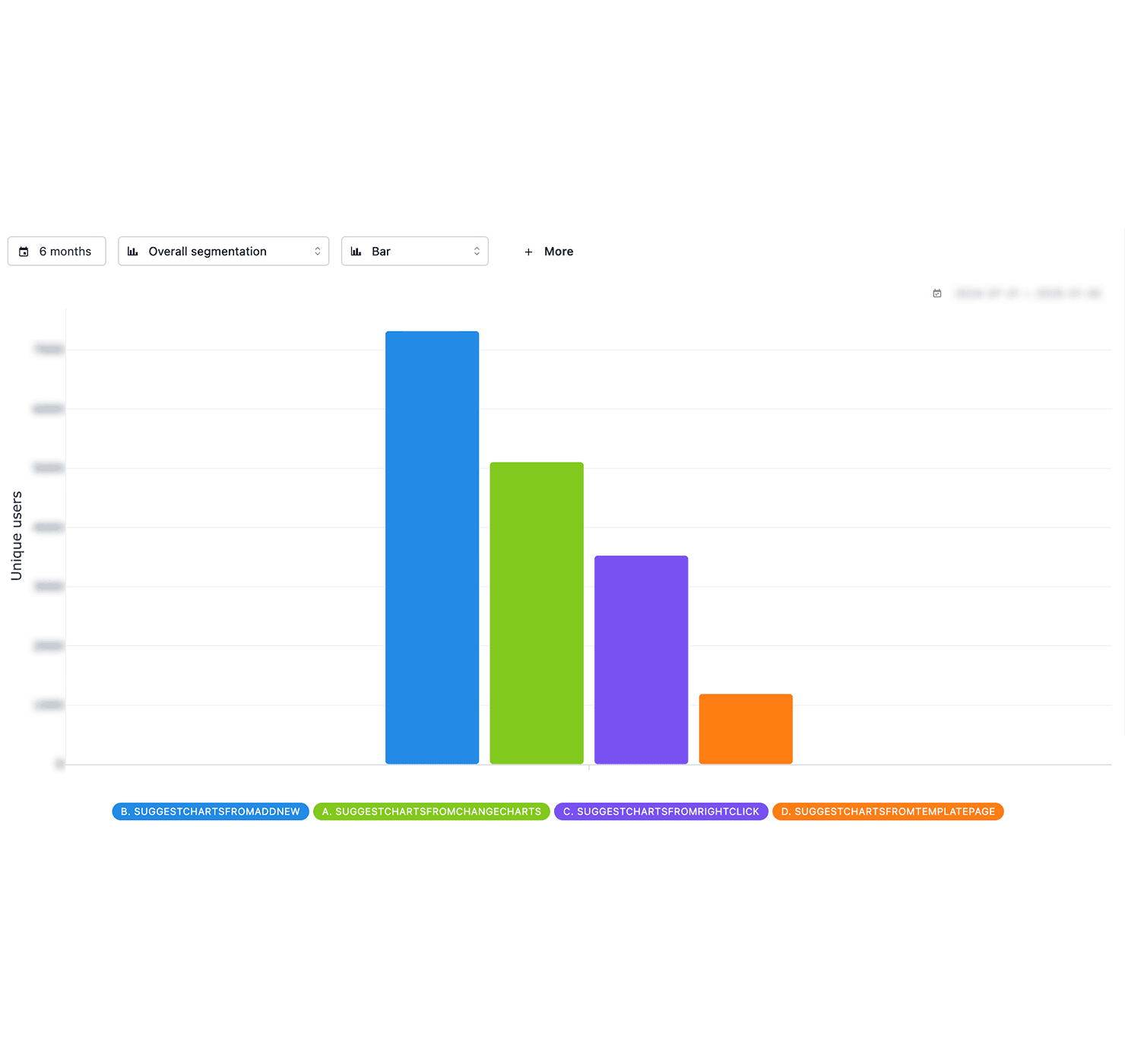
Were users pasting chart images? If so, how often? We had no way to recognize what an uploaded image contained, so analytics couldn’t help me, though uploaded images were among the most used elements. So I looked elsewhere:
- I browsed recent user projects, looking for static charts.
- I asked customer success what they were seeing.
- I listened for it in unrelated user interviews happening at the time.
A pattern showed up. Many users pasted in charts created elsewhere, as they lacked the source data or the time to rebuild them, and the images clashed with their style and branding. Turning them into editable charts was a real need: it would save time and improve visual quality. And since Infogram projects have themes, the new charts automatically pick up the company’s colors and fonts.
Designing the flow
With the head of product’s blessing, I went back to Gustavo with the good news and we started building the feature. I focused on:
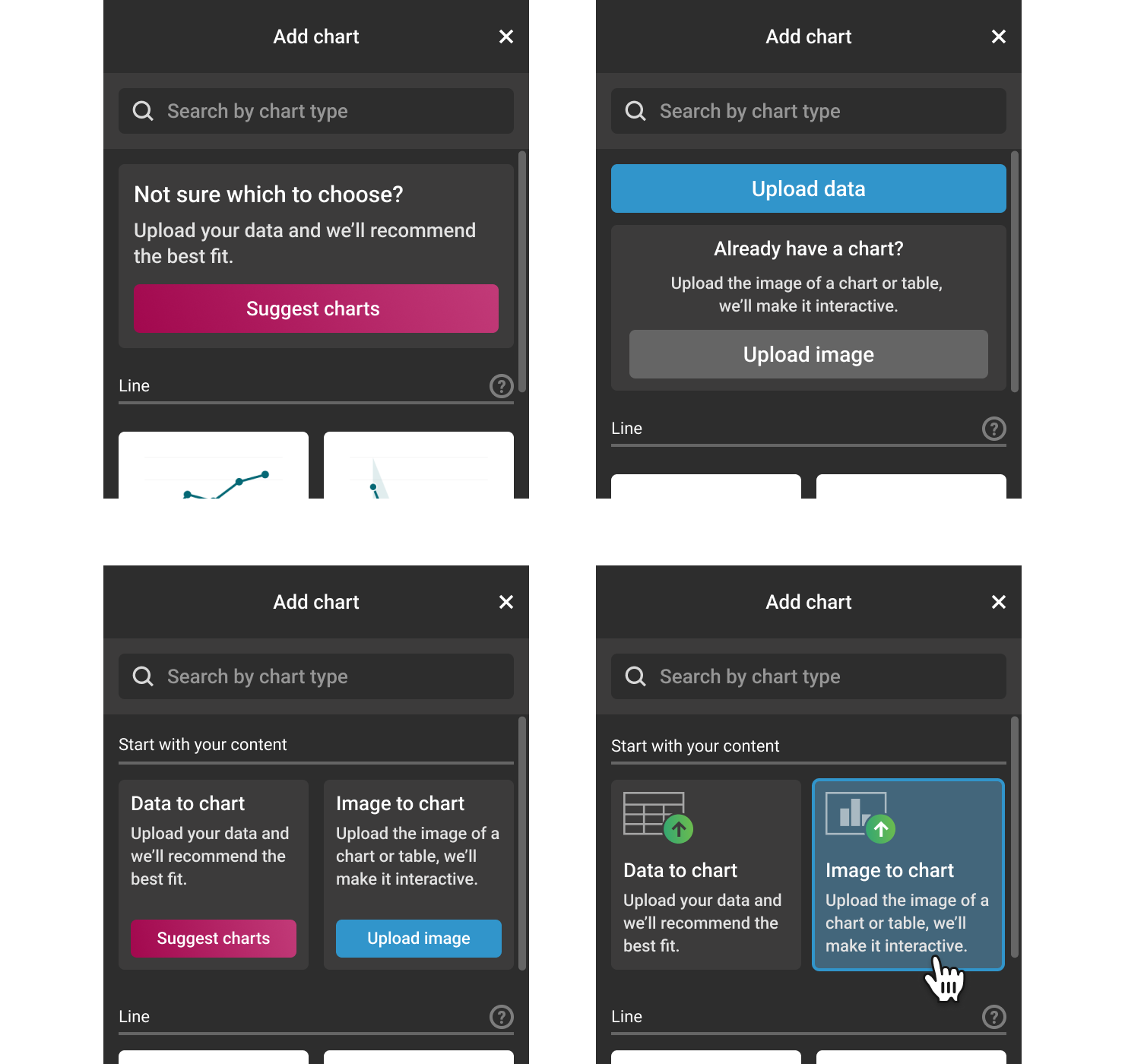
1. Entry points: how will users discover it?
The usual Infogram flow is: pick a chart → fill in the data. In contrast, the new feature and the existing “Suggest charts” work the other way around: upload a file (spreadsheet or image) → get a chart.
I considered merging them into one “Upload file” entry. But a generic label doesn’t communicate the new capability well enough and could lower adoption. So I kept them clearly visible, side by side.
Users also often add images by dropping or pasting them directly onto the canvas, so this had to work as an entry point too.
2. Interactions: how will users trigger the conversion?
Ideally, a pasted chart image would convert automatically as soon as it’s detected. But users sometimes want to keep an image as an image, and we couldn’t rely on AI so blindly at the time, as hot-air balloons
 too were considered charts. So I brainstormed a few options:
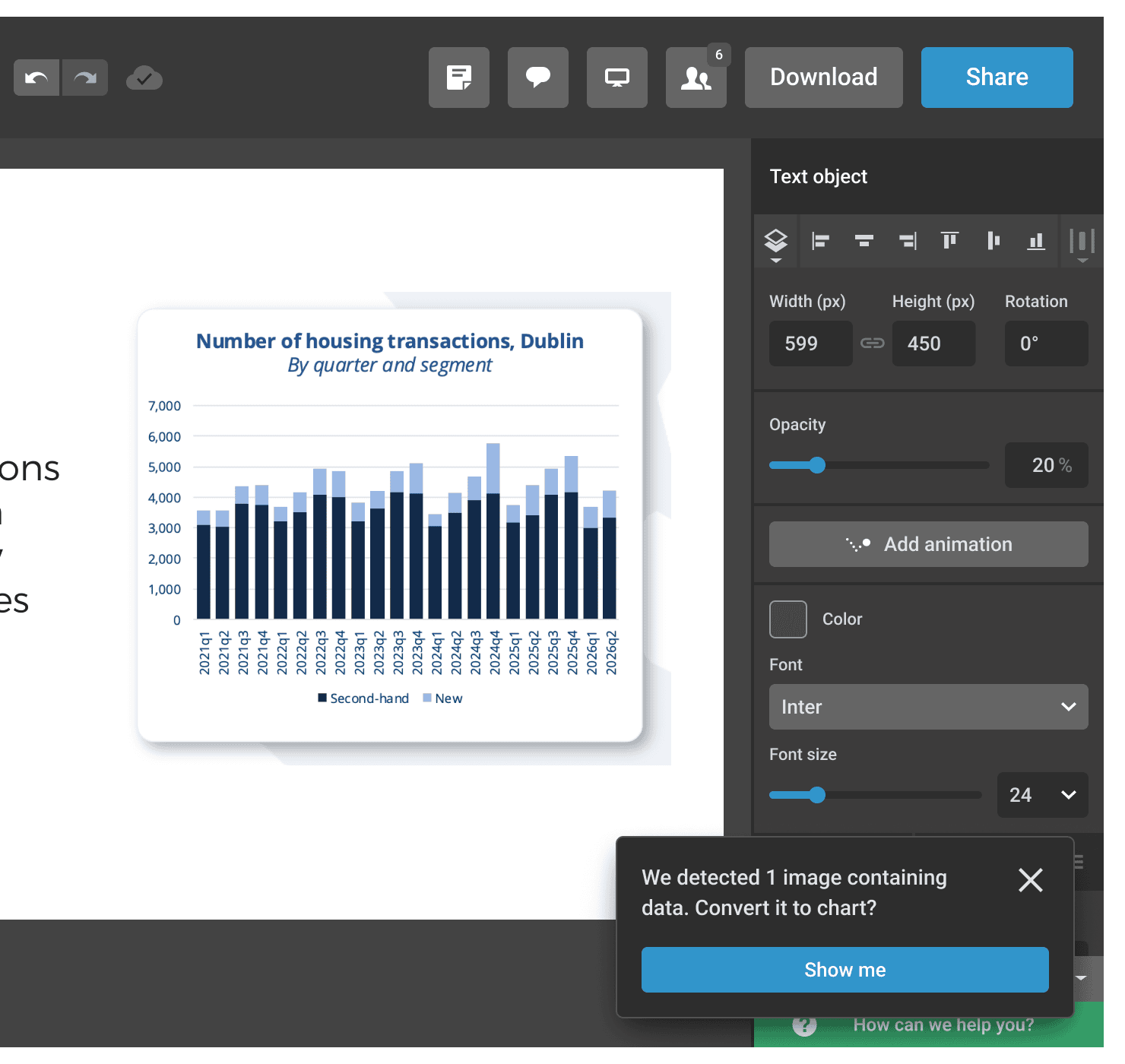
- Works when multiple images are uploaded
- Visible even if the image isn’t selected
- Far and disconnected from the image
- Unclear how to find it again once dismissed
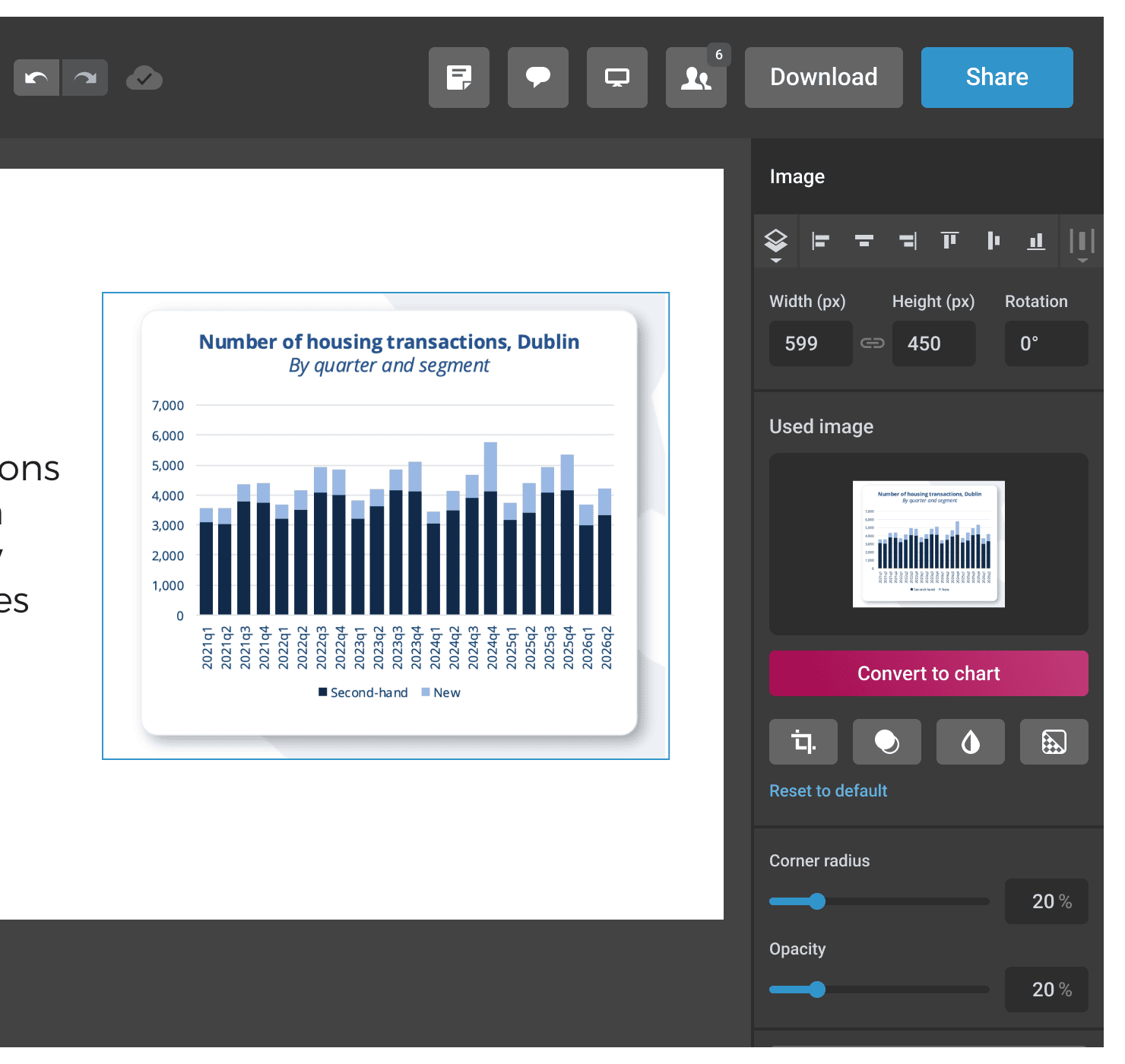
- Consistent with the rest of the UI
- Appears after a couple of seconds, shifting the layout
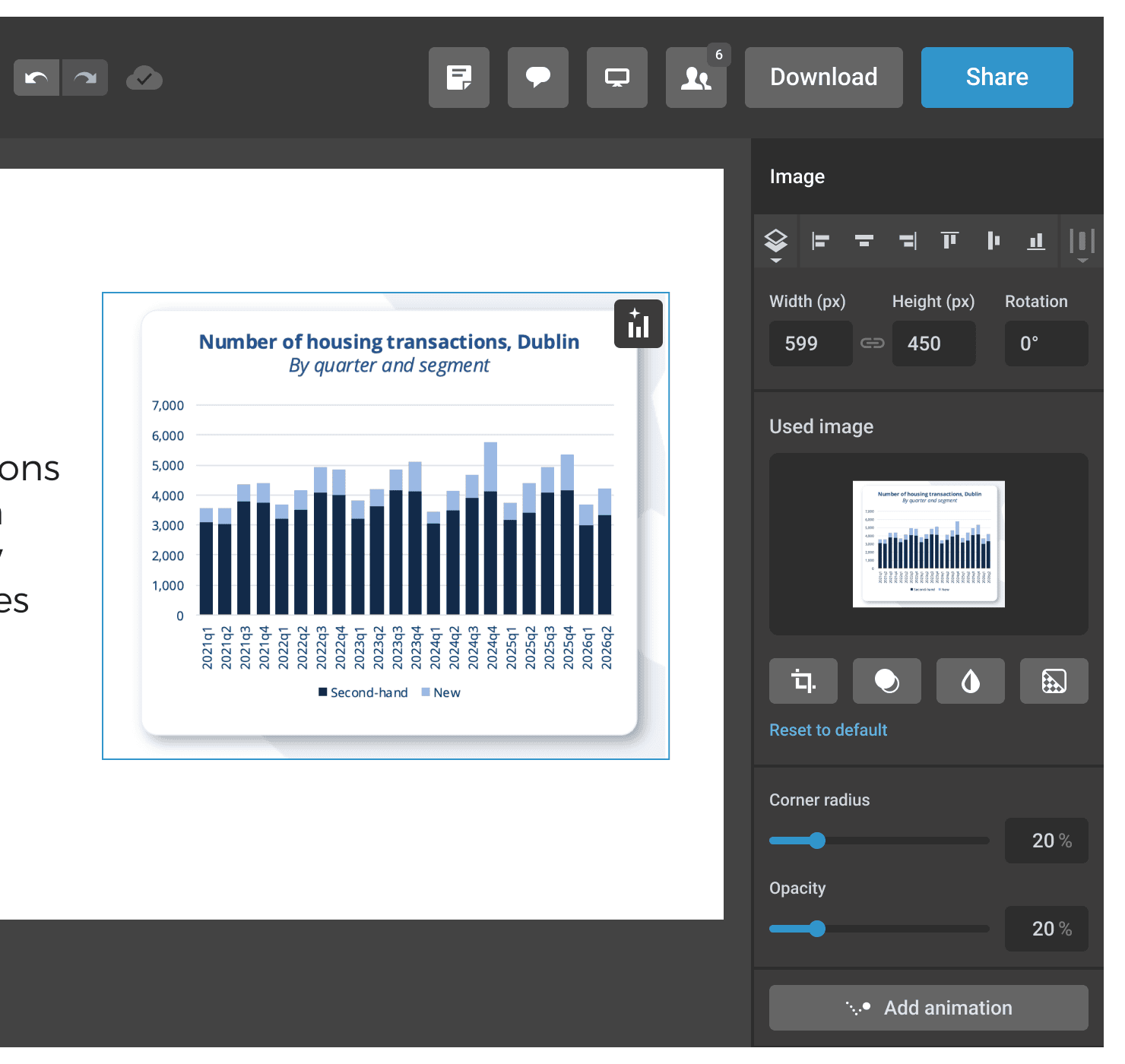
- Existing pattern
- Hides part of the image
- Easy to miss
- One icon is not clear enough
I chose a button in a floating toolbar that appears as soon as image recognition completes. Images didn’t have a toolbar yet, but I knew one was coming in the following weeks, as texts and charts already had it.
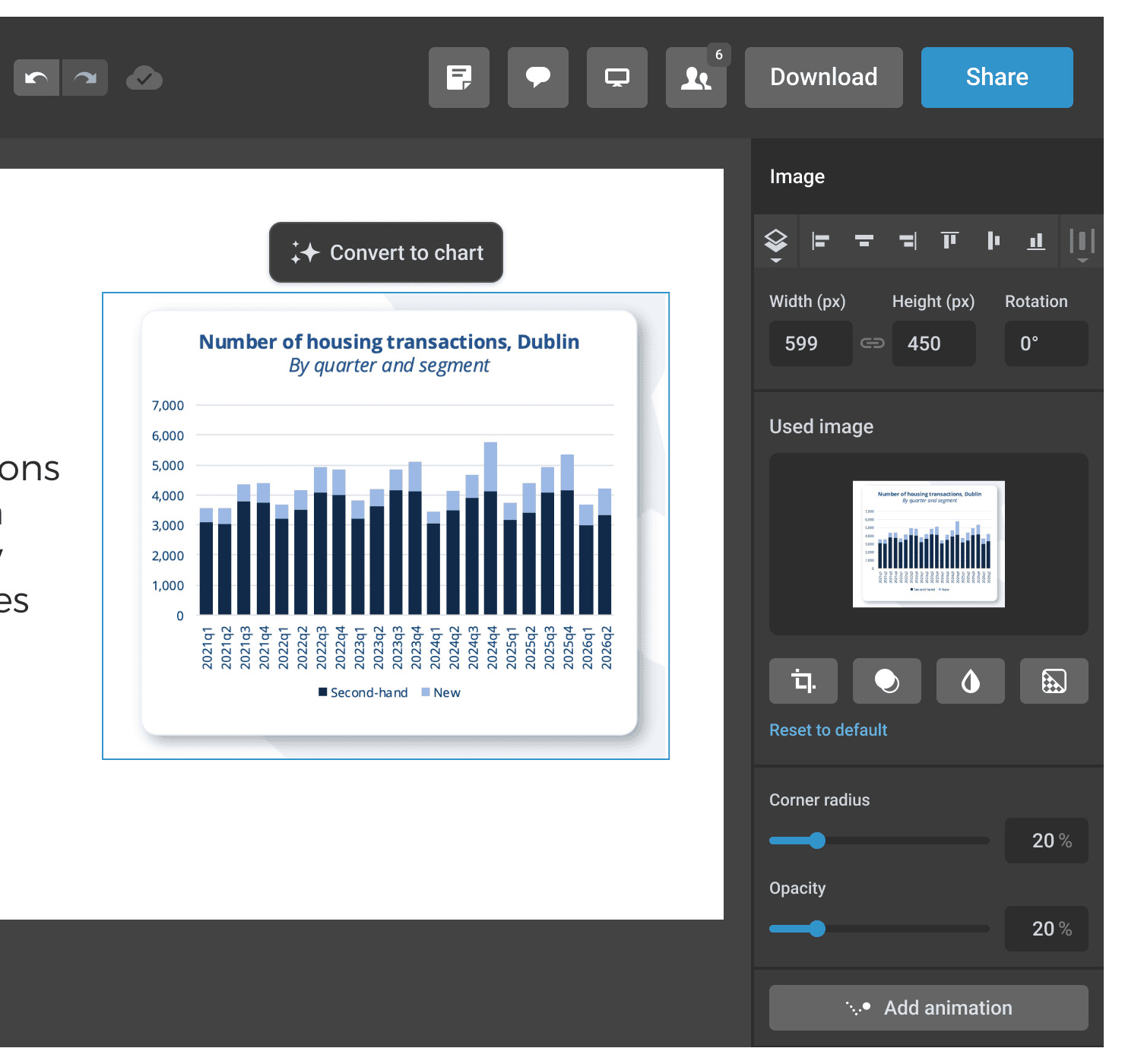
Users might miss the button if they click away right after pasting. It’s a small risk: they usually move or edit the image first, which gives the recognition enough time to finish. And since core users work in Infogram daily or weekly, they’d learn about the feature quickly.
3. Edge cases: what if AI misreads the data?
My first flow was almost frictionless: one click and the static screenshot comes to life as an animated, interactive chart. But the AI of the time wasn’t always accurate, and some cases were impossible to get right. In the example below, the screenshot shows a line with dense data points, and the AI result is a poor approximation.
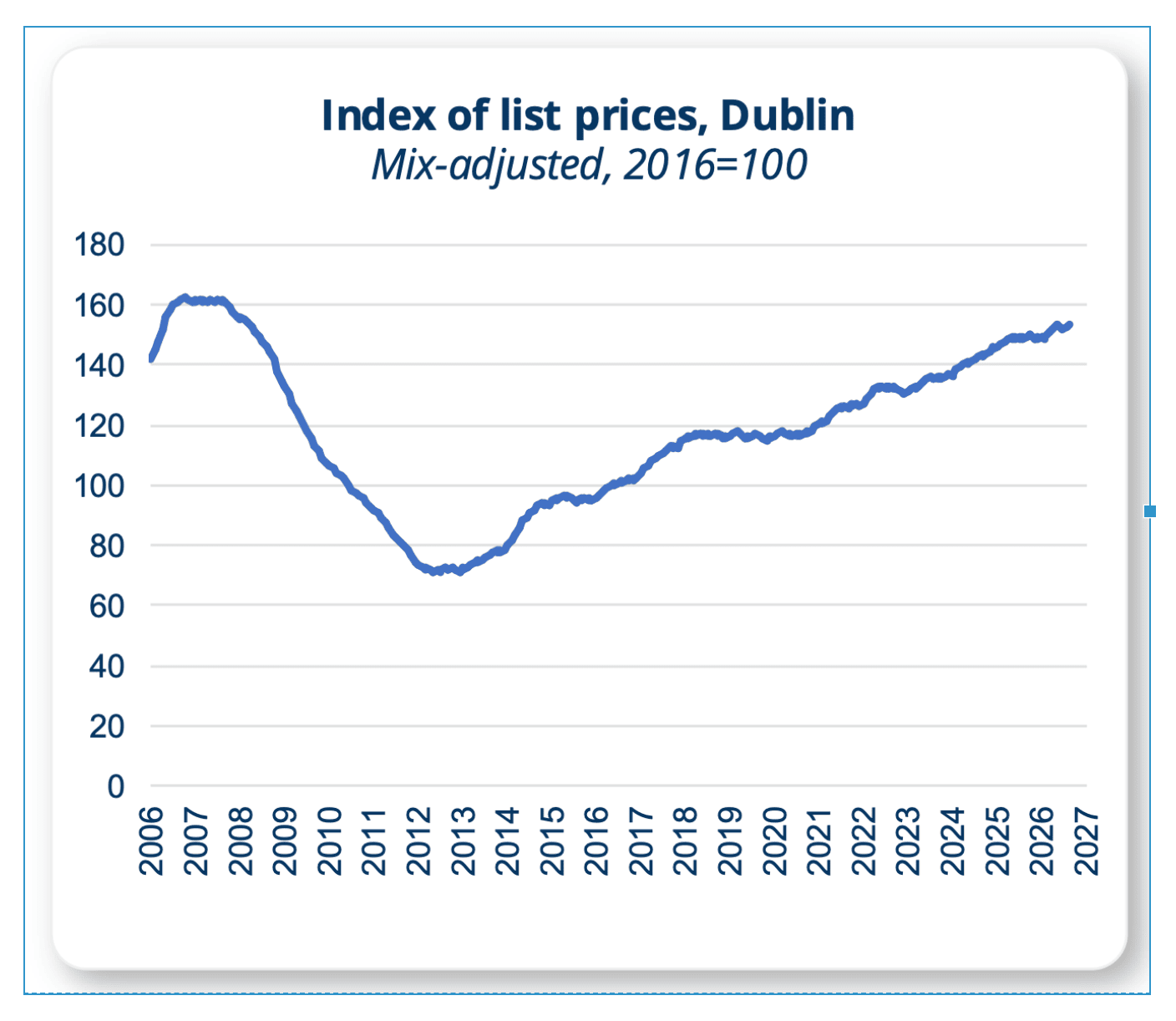
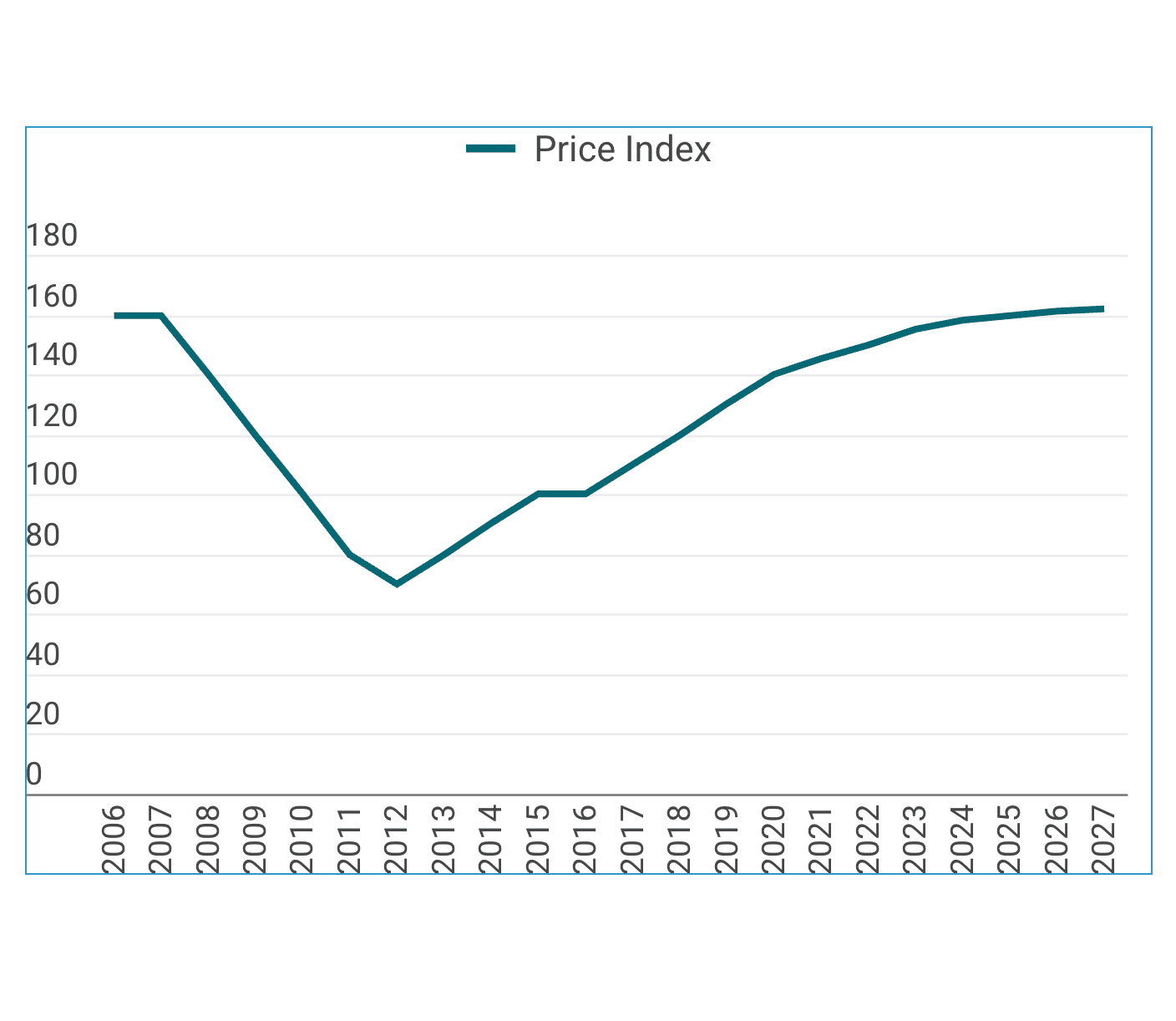
So we added a step for users to verify the data accuracy: one more click, a bit of friction that helps users catch missing details before presenting wrong data to their audience. Setting the right expectations around AI capabilities is essential to keep users’ trust.
This is what we shipped and tested with users. Together with our UX researcher, we ran user interviews, and people said it felt like magic and saved them time.
Refining the details
Once the toolbar landed on images, I designed an animation for the button to make sure it attracts attention.
Room for improvement
The toolbar and the preview panel move above or below the image, depending on where there’s more space. It was a good start, but I wasn’t happy with the experience on small screens, as it’s sometimes hard to see both charts to compare them. I’d iterate on the panel design, adding some responsiveness and thinning the frame, which is now visually heavy and takes unnecessary space (even if consistent with the Infogram UI). I’d also replace the generic spinner.